10 Resume Formatting Tips That Get Past ATS
Stop your resume getting lost to ATS filters. Get 10 actionable formatting tips for 2026 to make your resume machine-readable and human-friendly every time.
By Yuvraj Bajwa, Founder, Resumae
July 12, 2026 · Updated October 16, 2026 · 5 min read
Resumae articles are written to help job seekers make better application decisions and are reviewed against our editorial policy.
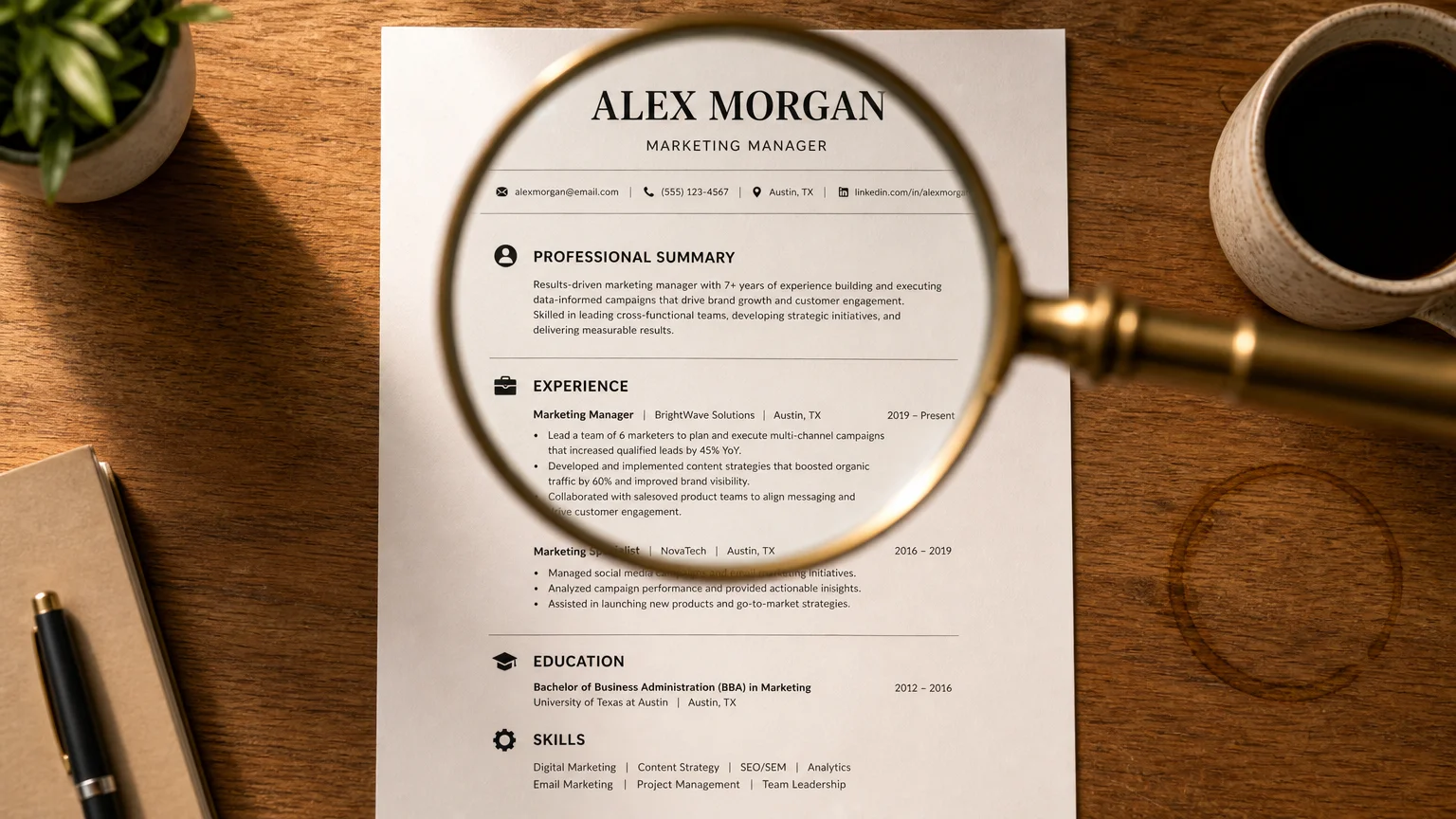
You’ve sent out dozens of resumes and heard nothing back.
The problem may not be your experience or skills. Check the formatting first.
Most companies use an Applicant Tracking System (ATS) to screen resumes before a human sees them. If the formatting is wrong, the system may misread the document or return no usable text.
You usually do not need to start from scratch. Check these 10 formatting rules instead.
1. Use a Clean, Single-Column Layout
Tables, columns, text boxes, and sidebars can scramble the reading order. The parser may not know where to look next, so it can return nonsense.
Do this instead: Use a simple, single-column layout. Your content flows from top to bottom in one straight line.
Why it works: ATS parsers read left-to-right, top-to-bottom. A single column matches how they expect to read a resume. (Resumly, PrismCV, Reddit)
2. Stick to Standard Section Headings
ATS parsers use a built-in dictionary to find standard sections like “Work Experience,” “Education,” and “Skills.” If you call your experience section “Adventures in the Corporate Jungle” or “Where I’ve Worked,” the parser won’t recognize it.
Fix it: Use boring, standard headings. “Professional Experience,” “Work History,” “Education,” “Skills,” “Certifications.” Save creative names for the cover letter.
Pro tip: Read the section headings on the job posting itself. Mirror their language. If they say “Relevant Experience,” use that. (ResumeOptimizerPro, Resumly)
3. Choose Simple, Widely-Supported Fonts
Fancy fonts confuse parsers. When an ATS can’t read yours, it often swaps in a generic one, which throws off spacing and formatting.
The safe fonts: Arial, Calibri, Georgia, Verdana. Set body text at 10-12 pt and headings at 14-16 pt.
What to avoid: Script fonts, ultra-thin fonts, or anything with unusual characters. Stick to the classics.
4. Save and Submit as .docx (Unless Told Otherwise)
.docx is often safer than PDF for ATS.
Modern systems can parse PDFs, sure. But .docx is the most universally reliable format out there. Some older systems still choke on PDFs.
Rule of thumb: If the job posting says “Submit as PDF”, do that. If it doesn’t specify, go with .docx. (Indeed, Resumly)
5. Keep Contact Info Out of Headers and Footers
ATS parsers often skip headers and footers entirely. Put your phone number and email in the header and the system might never see them.
The fix: Put your contact info at the very top of the main body. Name, phone, email, and LinkedIn should sit in the first few lines of the document.
Why it matters: If the ATS can’t read your contact info, you could be perfect for the role and never get a call. (Reddit, PrismCV)
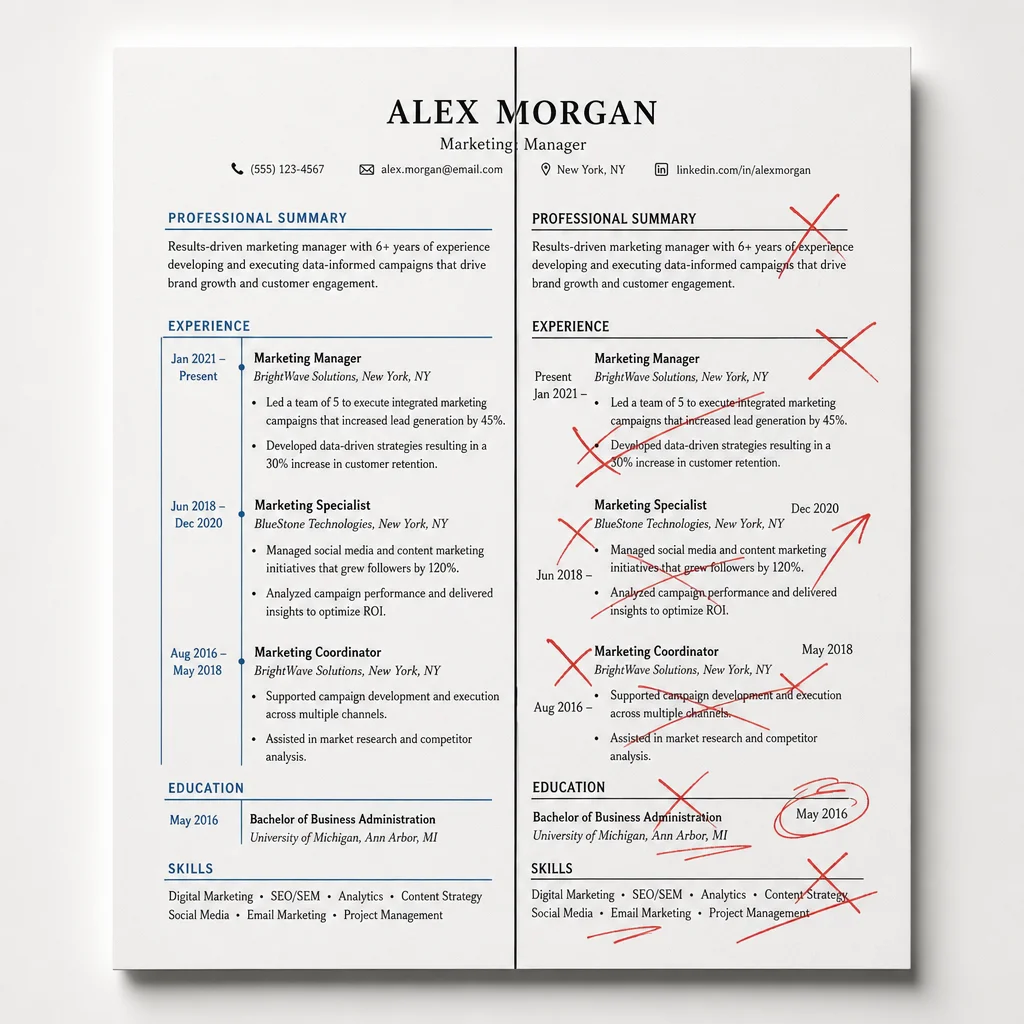
6. Use Standard Bullet Points and Consistent Dates
Small formatting inconsistencies scramble parsers. Mixing bullet types or switching date formats muddles the reading order.
The safe choices:
- Use standard bullet points: . or -
- Dates: “Jan 2020 - Mar 2023” or “January 2020 - March 2023”
- Don’t mix “March 2023” with “03/23” with “2023”
Pro tip: Pick one date format and use it everywhere. That’s it.
7. Include Keywords from the Job Description
ATS often ranks candidates by keyword matches. Relevant terms from the job description can help your resume appear in the right searches.
The strategy: Read the job description first. Pull out the 5-7 most important skills and qualifications, then sprinkle those phrases naturally into your experience and skills sections.
Example: Say the posting calls for “project management” and “cross-functional collaboration”. Those exact phrases should show up in your resume, not just close variations.
Warning: Don’t keyword stuff. It reads poorly for humans and can trigger spam filters. Use keywords naturally. (Indeed, Reddit, University of Pittsburgh)
8. Spell Out Acronyms at Least Once
ATS dictionaries may treat “SEO” and “Search Engine Optimization” as different terms. If the job description uses “SEO” but your resume only says “Search Engine Optimization”, you might miss a match.
Fix it: Write it out in full the first time, then use the acronym afterward. Example: “Search Engine Optimization (SEO) - then SEO afterwards.”
Why it works: It covers both versions, so the ATS matches regardless of how the keyword appears.
9. Skip Graphics, Logos, Photos, Charts, and Icons
ATS reads text, not graphics. Logos, photos, charts, and icons are invisible to the parser and can complicate the scan.
An infographic of your career timeline won’t help. A photo may just show up as a blank spot.
Keep it text-only. Your resume should work even if rendered as plain text. (Upskillist, ResumeMate)
10. Use a Professional File Name and Run an ATS Simulator
Pick a file name that says what the document is. A name like “resume_final_v3_2.docx” tells you nothing; “Jane_Doe_Resume.docx” at least points somewhere useful.
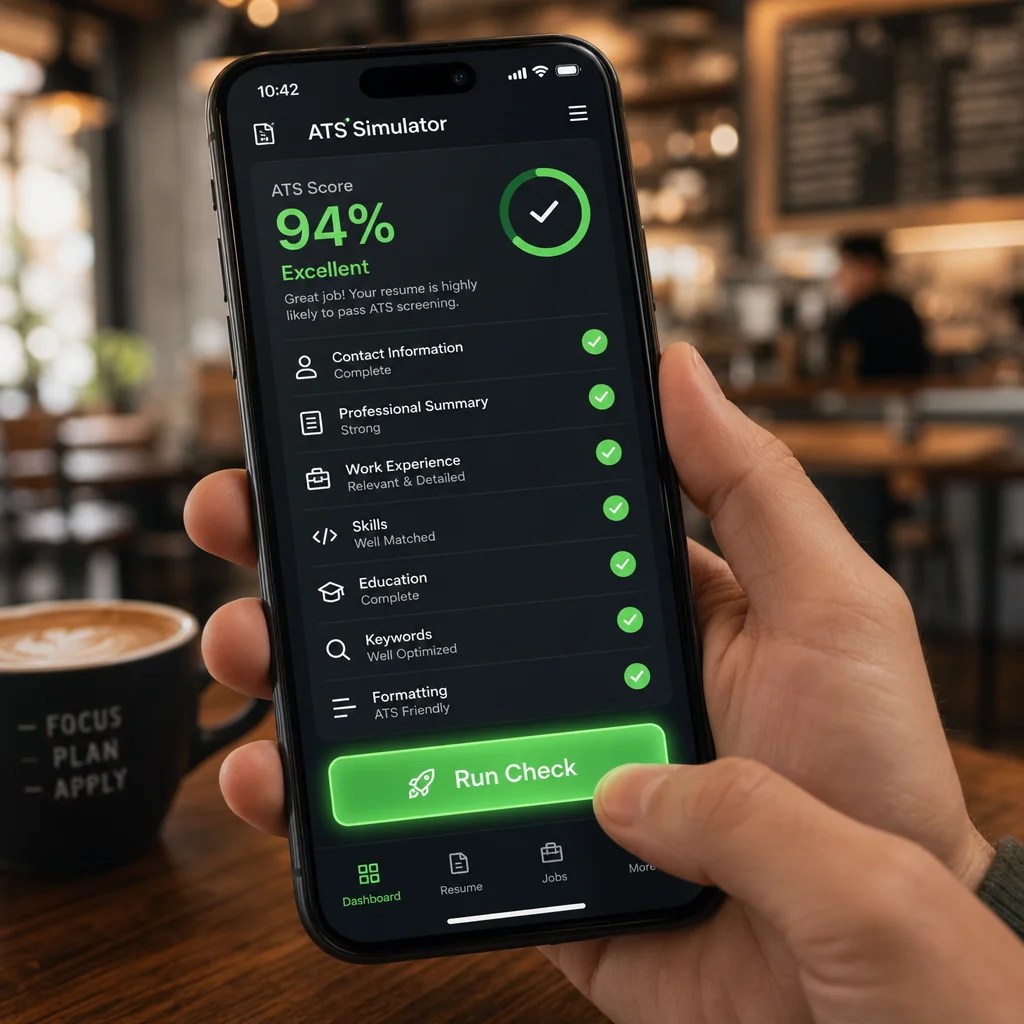
Before you hit submit, run the resume through an ATS simulator. Check that dates land where they should, sections are all present, and the text holds its order. Anything that fails to parse, fix it.
Free options: Jobscan, Resumly’s ATS checker, or even just paste everything into Notepad to see what a text-only version looks like.
Key takeaways:
- Single-column layout: no tables, columns, or sidebars
- Standard headings: no creative names for sections
- Safe fonts and file types: Arial/Calibri, .docx preferred
- No graphics or headers/footers: ATS reads text only
- Run a simulator before every submission
None of this guarantees anything, but it cuts down on the common parsing problems.
Formatting is half of ATS optimization
A parsable file only gets your content read. The other half is whether that content matches the role, using the posting’s terms where they honestly describe your work. Before rewriting, check which gaps are just phrasing and which are real experience gaps, so you fix the first kind and stay honest about the second.
Resumae compares your resume against the posting directly, flags missing keywords and fit gaps, and exports a clean single-column file. For the matching side, read the resume keyword matching guide and how to tailor your resume.

About the author
Yuvraj Bajwa
Founder, Resumae
Yuvraj Bajwa is the founder of Resumae, an AI job-search workspace built as part of Coffee Drop Studio. He writes and reviews the resume, cover letter, interview, and application-tracking guidance on this site, drawing on the day-to-day work of building the tailoring, fit analysis, and ATS tools the articles describe.
- Founder
- Product lead
Related reading
Does Tailoring Your Resume Really Matter for ATS?
Learn the truth about ATS resume screening, why tailoring genuinely improves your chances, and how to customize efficiently without rewriting from scratch.
Sent 50 Resumes & Got Zero Callbacks: What Am I Doing Wrong?
Zero callbacks after 50 applications is fixable. See the real reasons your resume is being ignored and fix your next 50 applications.
How to Write a Career Change Resume That Gets Noticed
Write a career change resume that gets interviews without direct experience: pick the right format, map transferable skills, and use the new field's terms.
Next step
Ready to build a resume that gets noticed?
Paste a job description and let AI tailor your resume - free plan, no credit card required.